
Asian Hand Converter: HUD for PokerBros, PPPoker, ClubGG and other poker apps
A HUD on the Asian poker apps.
Track your hands and run a HUD on PokerBros, PPPoker, ClubGG and ten more apps, on your PC or in an Android emulator. The industry standard for the Asian apps.
New to it? Read the online manual · Part of the DriveHUD 3 family


HotPokerDeals is a DriveHUD partner. Product texts, setup instructions, screenshots and logos on this page are DriveHUD’s own, from drivehud.com/asianhandconverter and the Asian Hand Converter manual. Checked on 22 October 2026.
Every major Asian app, in one converter.
Every plan includes every app, every stake and every game type. App names link to our HotPokerDeals guides where we have one.

Three steps, then just play.
- Install and add your serialDownload the converter, enter your serial, and it is ready. Inside DriveHUD it is built in.
- Click StartLaunch the converter and click Start. It works alongside the poker app, on your PC or in an emulator.
- Play with a HUDYour hands are converted as you play, so your tracker imports them and the HUD shows on the table.
Works with
Every hand, every table.
The converter tracks the tables you play and the ones you only watch, cash games and tournaments alike, so your reads build up even when you are not in the hand.
- All game types, cash and tournaments.
- Observed tables as well as your own.
- A full HUD with pop-ups and heat maps on every player.

Play mobile apps on your PC.
Run the mobile apps in an Android emulator on Windows and multi-table with a HUD. The converter also gets around the emulator restrictions on PokerBros.
Supported emulators
| Emulator | Supported versions |
|---|---|
| LDPlayer 4 | Android 7.1, 32 or 64-bit |
| LDPlayer 5 | Android 7.1, 32 or 64-bit |
| LDPlayer 9 | Android 9.0, 64-bit |
| BlueStacks 4 | Nougat-32, Nougat-64, Pie-64 |
| BlueStacks 5 | Nougat-32, Nougat-64, Pie-64 |
| Nox | Android 7, 32 or 64-bit |
How to download and set up LDPlayer 9 for Asian Hand Converter
- Download, install and launch the emulator. Download the latest LDPlayer emulator for PC from ldplayer.net, install it and launch it. On the top you have the settings button; on the lower right are the back, home and app switch buttons.
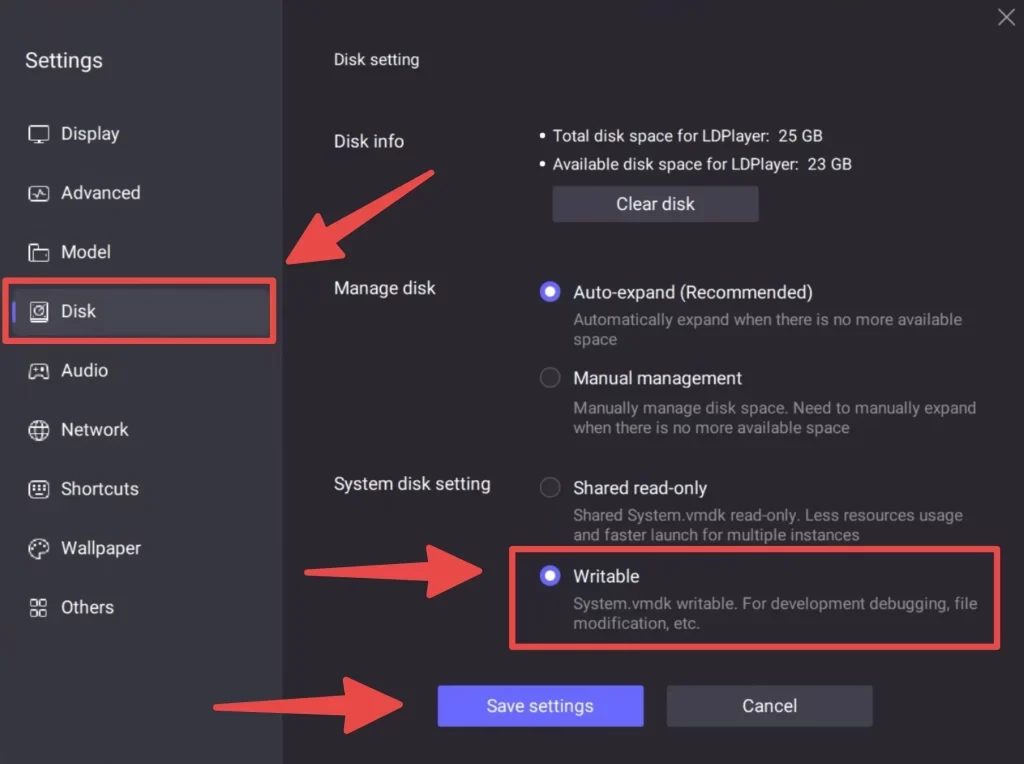
- Make the system disk writable. On Settings › Disk, set the System disk setting to ‘Writable’. Afterwards, click on Save Settings.
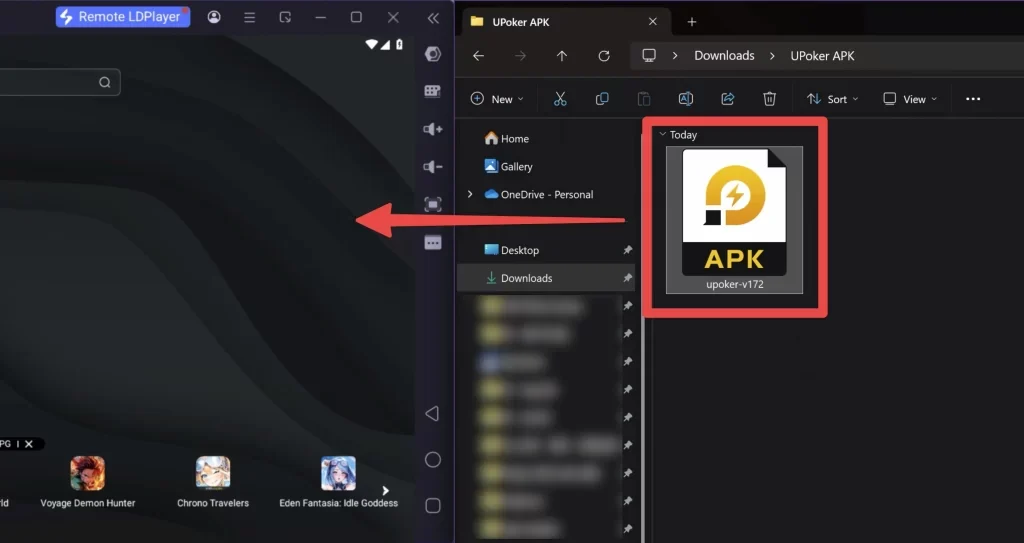
- Install the poker app. Download the poker app APK file, install it by dragging or double-clicking, then launch the poker app. Adjust gameplay settings with the gear icon and click “Save Settings” for changes to take effect.
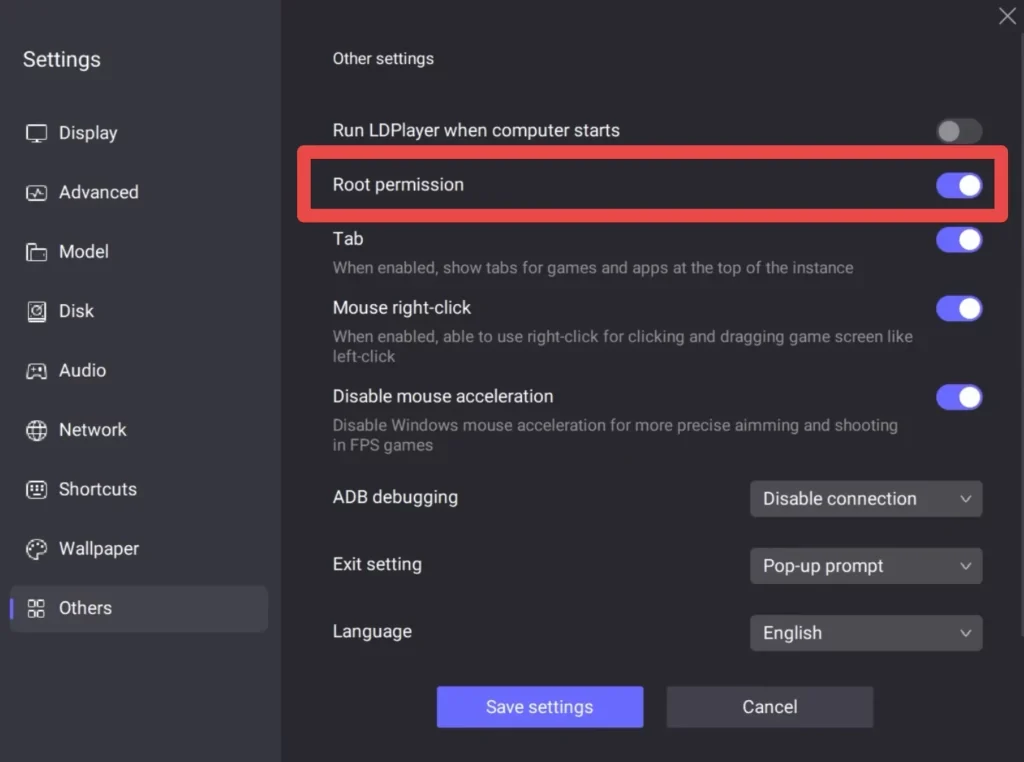
- Enable root permission. Click on Settings (gear icon), click on Others, and turn on the toggle for Root Permission.
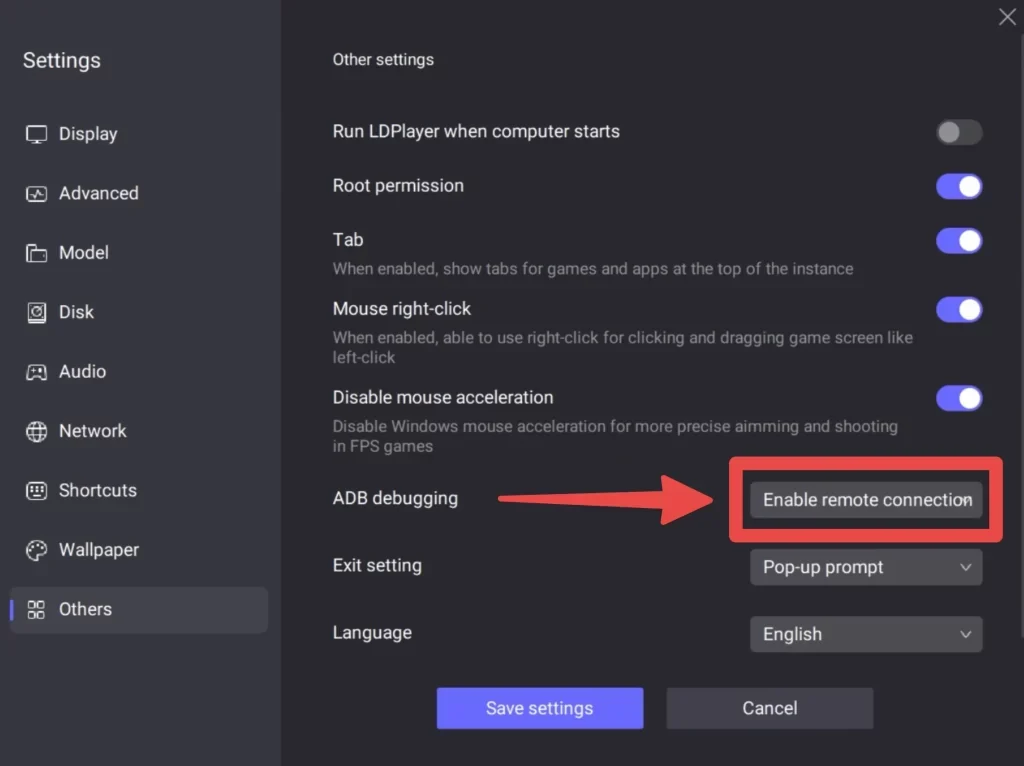
- Enable ADB remote connection. Set ADB Debugging to ‘Enable Remote Connection’, then click Save Settings.
Not sure how to set one up? The manual and videos walk you through LDPlayer, BlueStacks and Nox. BlueStacks downloads: bluestacks.com · Nox: bignox.com.
Built into DriveHUD 3: activate it once.
The Asian Hand Converter is integrated into DriveHUD 3, and it is included with DriveHUD 3 Ultimate+.
- Open the APPS tab. Click on the APPS tab at the top of DriveHUD 3.

- Launch the converter. Click on INSTALLED APPS, and then click the LAUNCH button for the Asian hand converter.
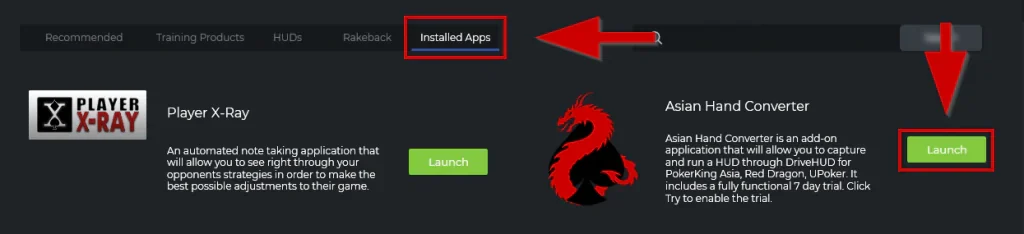
- Register or start a trial. You’ll be asked to register your hand converter. Enter your serial with your e-mail, or click TRIAL if you’re trying it out (there’s a fully functional 7-day trial).
- Pick your sites. By default all of the available sites are checked and enabled. If there are sites you’re not playing on, and you want to save system resources, you can uncheck those sites from the list. You can go back at any time and re-enable them.
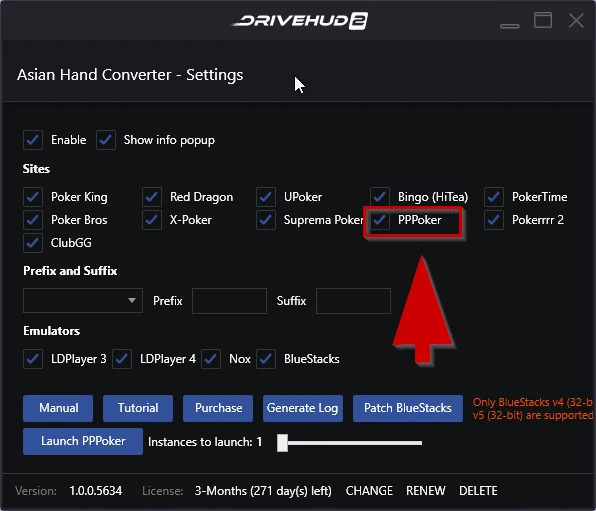
PPPoker checked 
Licence active: you are all set
That’s it. Once you activate and register it once, you’ll never have to revisit the settings unless you need to make a settings change.
Stand-alone version
How do I register my licence for Asian Hand Converter?
For Hold’em Manager, PokerTracker and Hand2Note users who run the stand-alone converter.
- Click on “CHANGE”. On the Asian Hand Converter main window (bottom part), click on “CHANGE”.
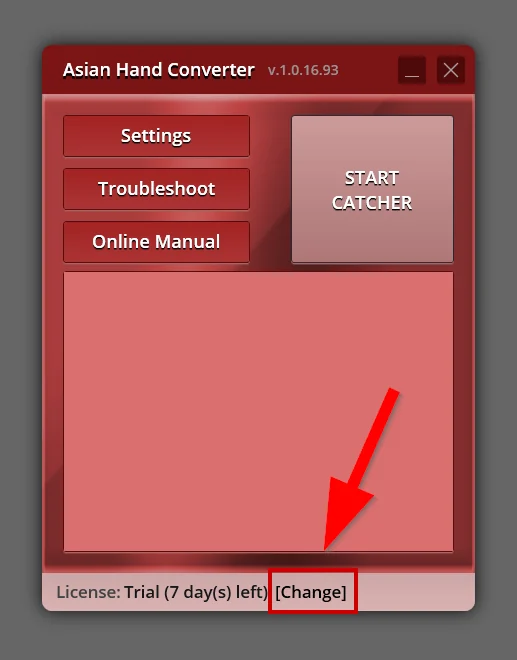
- Enter your email and serial. On the next pop-up window, enter your email address and your SERIAL / License, then click on OK.

- Check the result. If all went well, you should get a success message. Click on OK to close that window. On the main window (bottom part), you’ll be able to see how many days remain on your registered licence.

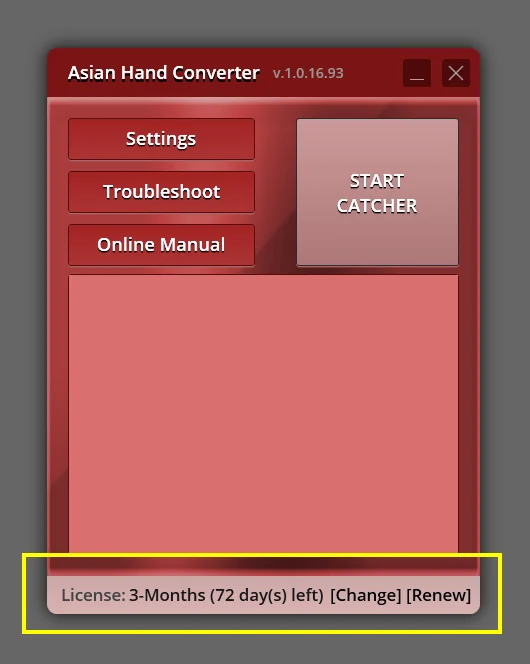
On the first load of the stand-alone converter, you’ll be asked to pick your database. The converter will auto set up your import directories for you; it is still worth double-checking the import settings in your tracker (see HM3 and PT4 below). DriveHUD doesn’t need the import settings.
Setup guides by poker app.
The official step-by-step instructions for the apps players ask about most. Every other app and tracker combination is in the online manual.
How to set up ClubGG (desktop version) with Asian Hand Converter
- Open Settings. Open the Asian Hand Converter and click on Settings. Make sure the correct database is selected, and check that your preferred emulator and ClubGG are checked (they’re checked by default), then click on Apply.
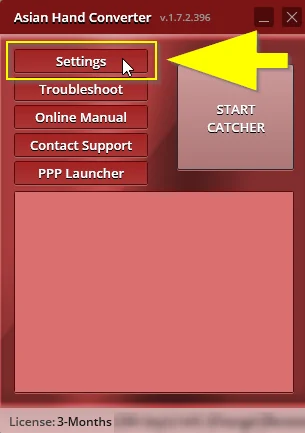

- Download and install ClubGG. Download the ClubGG desktop version from clubgg.net and install the ClubGG app.


- Sign in and play. Register or sign in for an account and start playing. That’s it!

How to launch the PPPoker desktop version
- Install PPPoker desktop in the default folder. Make sure the PPPoker desktop version is installed in the default directory C:\Program Files (x86)\PPPoker\Database. You can download it from pppoker.net.
- Open the PPPoker launcher. In the stand-alone Asian Hand Converter, click on ‘PPP Launcher’. In DriveHUD 3, click on the APPS tab, then INSTALLED APPS, and LAUNCH the Asian hand converter.

- Choose the number of tables. Drag the slider bar to set the number of instances you want to launch, then click on ‘Launch PPPoker’. Log in and play as you normally would.


Several PPPoker desktop instances launched by the converter.
How to set up X-Poker, Suprema Poker and other apps in DriveHUD 3
- Launch the integrated converter. Click on the APPS tab at the top of DriveHUD 3, click on INSTALLED APPS, and then click the LAUNCH button for the Asian hand converter.
- Tick your app. Asian Hand Converter will be launched and you’ll get a pop-up settings window. Make sure that X-Poker (or your app) is checked.

- Play. As long as your Asian Hand Converter licence is active, there shouldn’t be any additional setup needed. Load up your poker client and start using Asian Hand Converter.
How to fix PC-restricted PokerBros tables not showing a HUD on emulators
- Update the converter. Install Asian Hand Converter version 1.8.3.452 or higher, and make sure all emulators are closed on your PC.
- Log in on a real device first. On a real Android device like a smartphone or tablet, download the PokerBros app and log in with your PokerBros account. Then close the PokerBros app on the device. Important: do not log out of your account, just close the app.

- Start the catcher. On your PC, launch your emulator but do not open the PokerBros app yet. Launch Asian Hand Converter and click on Start Catcher, then wait for the opened emulator’s ‘Ready’ status to appear.

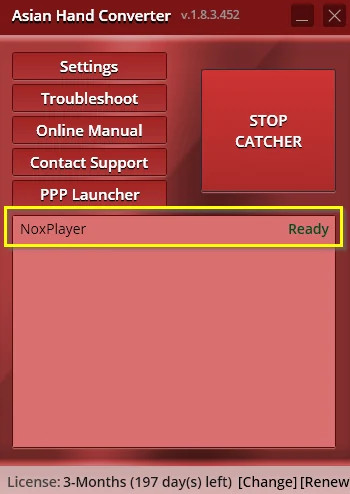
- Play. Launch the PokerBros app on the emulator, log in with your PokerBros account, and play as usual. You may also get a warning pop-up; just click on OK. After that you don’t need to open your PokerBros account on a real device.
Hold’em Manager 3 · PokerTracker 4
Check your tracker’s import folder.
AHC configures all databases automatically when you select a database on the first run or in the settings, so usually you don’t need to do anything in the database settings. If you need to check them, follow the steps below.
Holdem Manager 3
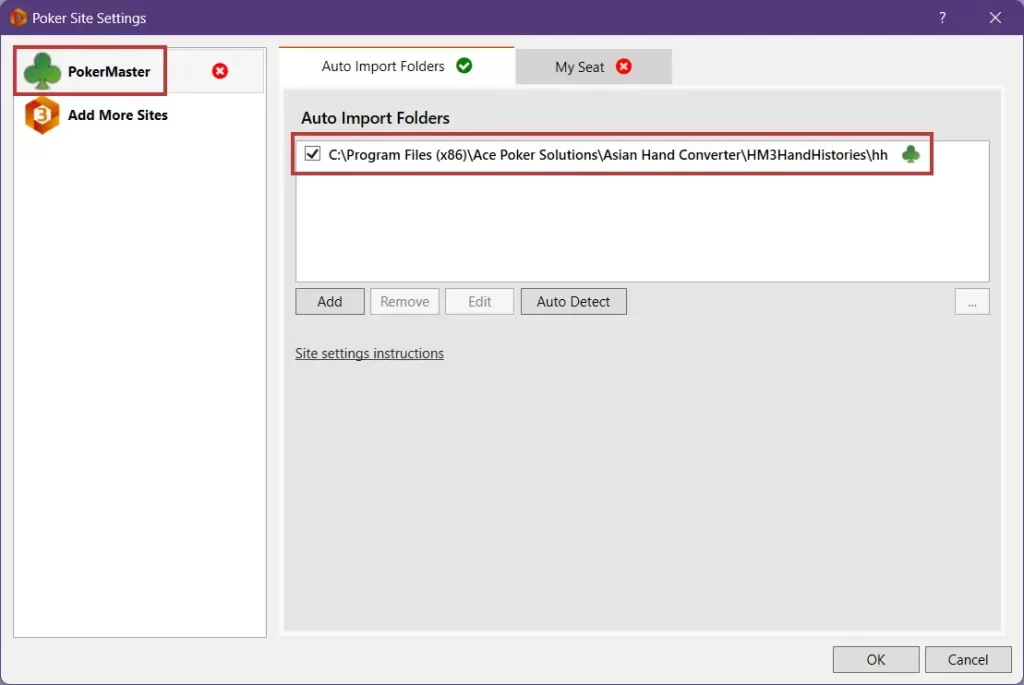
- In Holdem Manager 3, click on TOOLS then SITE SETTINGS.
- On the left-hand side of the Site Settings pop-up, click on ADD MORE SITES.
- Under More Sites, select the poker site you’re setting up and click Update Sites.
- Under Auto Import Folders, make sure that the Asian Hand Converter directory is listed: C:\Program Files (x86)\Ace Poker Solutions\Asian Hand Converter\HM3HandHistories\hh
- Click on OK again to close the Site Settings screen.
PokerTracker 4
- In PokerTracker 4, click on CONFIGURE from your top menu, then SITE & IMPORT OPTIONS.
- Under Poker Network on the left-hand side, select the poker site you’re setting up (ClubGG is under HHPoker in PT4).
- Make sure that Get Hands while playing on site is CHECKED.
- Under Directories Configuration, make sure that the Asian Hand Converter directory is listed: C:\Program Files (x86)\Ace Poker Solutions\Asian Hand Converter\HM3HandHistories\hh
- On PokerTracker 4, click on PLAY POKER, and GET HANDS WHILE PLAYING.

What each converter setting does.

- DatabaseShows the currently selected database type. Click change to select DriveHUD, Holdem Manager 3 (HM3) or PokerTracker 4 (PT4).
- Output formatWhich hand history format the hands are written in: iPoker, PokerStars or Asian poker clubs, depending on the database.
- EmulatorsSelect which emulators you want to be supported.
- Use Player IDTrack the poker site’s assigned user ID number instead of the username/alias.
- Automatic UpdatesChecked by default; prompts you when new updates are available.
- Check DB config on launchWarns you, and lets you fix it, if the database configuration is incorrect.
- Supported SitesAll listed sites are checked by default; uncheck those you’re not using.
- Patch BlueStacks · Create LogsPatch BlueStacks installed in the default directory; create logs to send to support.
Pick how long you play.
Every plan includes every app, every stake and every game type. Longer plans cost less per month, and auto-renewals get 10% off.
1 month
Try it for a month
$29/ month
Billed monthly at $29
- Every supported Asian app
- All stakes and game types
- Cash games and tournaments
- Works with DriveHUD, HM, PT and H2N
3 months
Best for regulars
$23/ month
Billed every 3 months at $69 · Save $18
- Every supported Asian app
- All stakes and game types
- Cash games and tournaments
- Works with DriveHUD, HM, PT and H2N
6 months
Best value
$21.50/ month
Billed every 6 months at $129 · Save $45
- Every supported Asian app
- All stakes and game types
- Cash games and tournaments
- Works with DriveHUD, HM, PT and H2N

Also included with
DriveHUD 3 Ultimate+
DriveHUD 3 at every stake, with the Asian Hand Converter built in. $199.99 a year.
Plans renew at the same price; auto-renewals get 10% off, and you can renew any time. Prices from drivehud.com/asianhandconverter, checked 22 October 2026.
“The Asian Hand Converter is the only poker software for Asian poker apps to be listed in TopPokerValue.com’s list of the best online poker software.”TopPokerValueas quoted on drivehud.com
Asian Hand Converter compared with EliteHUD, Hand2Note 4 and PokerTracker 4
Two converters and a tracker that skips the converter step on some apps. Pick by the tracker you already use and the app you play.
| Tool | Price | Runs on | Best for | Check first |
|---|---|---|---|---|
| Asian Hand Converter | From $21.50 a month, 7-day trial | Windows PC and Android emulators | 13 Asian apps for DriveHUD, HM, PT and Hand2Note | With DriveHUD 3 use the built-in version, not the stand-alone one |
| EliteHUD | Plan A $29, Plan G $99 a month | Windows clients and supported emulators | Hand conversion for ClubGG, PokerBROS, PPPoker, Suprema, X-Poker and QQPK | Not a tracker; you still need HM3, PT4 or Hand2Note |
| Hand2Note 4 | Learner $15.99, Pro $39 a month, paid yearly | Windows and Mac; emulator apps on Windows | Dynamic HUD, Action Profit, ClubGG HUD with no converter | Learner stops at a $0.25 big blind and 200k hands |
| PokerTracker 4 | From $64.99 once, 14-day trial | Windows and Mac | LeakTracker, NoteTracker and ICM tools in one database | Small Stakes stops at $0.25/$0.50 and $22 buy-ins |
The Asian Hand Converter makes the most sense with DriveHUD 3, where it is built in, or with HM3 and PokerTracker 4, which cannot read club apps by themselves. EliteHUD does the same job, priced by plan and app coverage. Hand2Note reads ClubGG and emulator apps directly, so a converter adds little there. Use the 7-day trial on the exact app and union you play.
Setting up the PC side: Android emulators for poker. App guides: PokerBROS, PPPoker, ClubGG.
Asian Hand Converter: before you buy.
Answers from the official Asian Hand Converter page and manual.
Which trackers does Asian Hand Converter work with?
DriveHUD, where it is built in, plus Hold’em Manager, PokerTracker and Hand2Note.
Can I play the Asian poker apps on my PC?
Yes. Use the desktop app where one exists, such as ClubGG, or run the mobile app in LDPlayer, BlueStacks or Nox on Windows.
Does it track tables I am only watching?
Yes. It tracks observed tables as well as the ones you play, cash games and tournaments alike.
Is there a free trial?
Yes. Download the converter and try it before you buy. Inside DriveHUD 3 there is a fully functional 7-day trial: click TRIAL when you are asked to register the converter.
Is it included with DriveHUD 3?
It is included with DriveHUD 3 Ultimate+. With Core or Ultimate, add a converter plan. See the DriveHUD 3 plans.
Do plans renew?
Yes, at the same price. Auto-renewals get 10% off, and you can renew any time.
Which emulators are supported?
LDPlayer 4 and 5 (Android 7.1, 32 or 64-bit), LDPlayer 9 (Android 9.0, 64-bit), BlueStacks 4 and 5 (Nougat-32, Nougat-64, Pie-64) and Nox (Android 7, 32 or 64-bit). If you have LDPlayer v.4.37 or higher, ADB root access needs to be enabled or AHC won’t work.
Should I use the stand-alone converter with DriveHUD 3?
No. Use the integrated version of the Asian Hand Converter with DriveHUD 3. If you use the stand-alone version with DriveHUD 3, your emulator will just restart in a continuous loop.
Do you have a setup guide?
Yes. The online manual walks through every app and emulator, and the DriveHUD support team can help. The most common setups are on this page: ClubGG, PPPoker, X-Poker and Suprema and PokerBros.
Is using a HUD allowed on these apps?
Each app sets its own rules for HUDs and tracking software, and clubs can add stricter ones. Check the terms of the app and your club before you play.
Put a HUD on the Asian apps.
Download the converter, click Start, and play with your stats on every player.
18+. Play responsibly. Third-party poker software can be restricted by poker apps, clubs and unions; check their terms before you install it. HotPokerDeals is an information resource and a DriveHUD partner; we may earn a commission from purchases made through our links at no extra cost to you. Texts, screenshots and logos © DriveHUD / Ace Poker Solutions. More: poker software hub · mobile poker clubs.